
## 1. Hardware Package
Package1 (Temperature only):

Package 2 (Temperature and Humidity):

## 2. Insert the Micro-SIM Card
The Micro SIM card is required for this GPRS Monitor. Open the product case and insert it into the SIM card slot, as the following pictures shows. You may need to use a SIM card holder if necessary.
After you inserted the SIM card, then close the product case again.

## 3 Get the SN
>SN: The Serial Number is the unique ID of your eMonitor, it is composed of several digits or letters.
The white label attached to the monitor is the SN number, as shown in the picture below.
You need to get the Device SN for your later registration on DeviceBit Cloud.
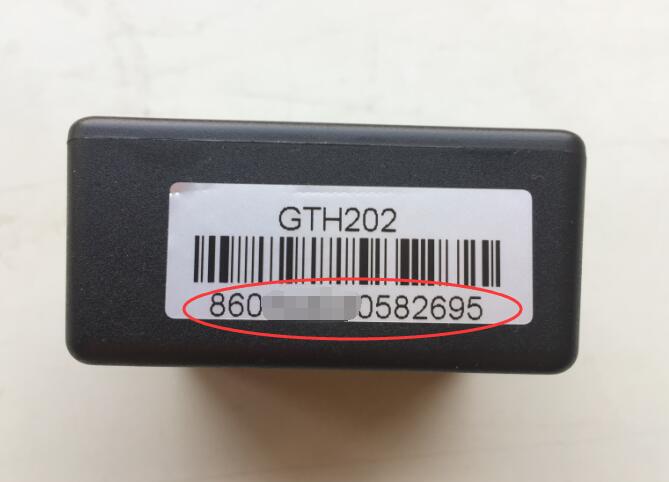
Now you can power on the device and then add it on DeviceBit Cloud. Please refer to [Chapeter 4](/doc/htmonitor/operation-on-cloud.html)
- 1 Product Introduction
- 2 Product Catelogue
- 3 Product Manual
- 3.1 Wi-Fi Monitor (WTH8266)
- 3.2 Wi-Fi Monitor (WTH3080)
- 3.3 GPRS Monitor(GTH202)
- 3.4 GPRS Monitor(GBTH202)
- 3.5 LTE Monitor
- 4 Operation on Cloud
- 4.1 Add your Device
- 4.2 View Data on Web Portal
- 4.3 View Data on WeChat
- 4.4 Alerts Setting and Notification
- 5 Connect to Your Own Server
- 6 Monitor Locally via LAN
- 7 Product DataSheet
- 7.1 WTH8266
- 7.2 WTH3080
- 7.3 GTH202
- 9 Tutorial Video
- 10 Technical Support
- 8 Product QuickStart
- 11 FAQ